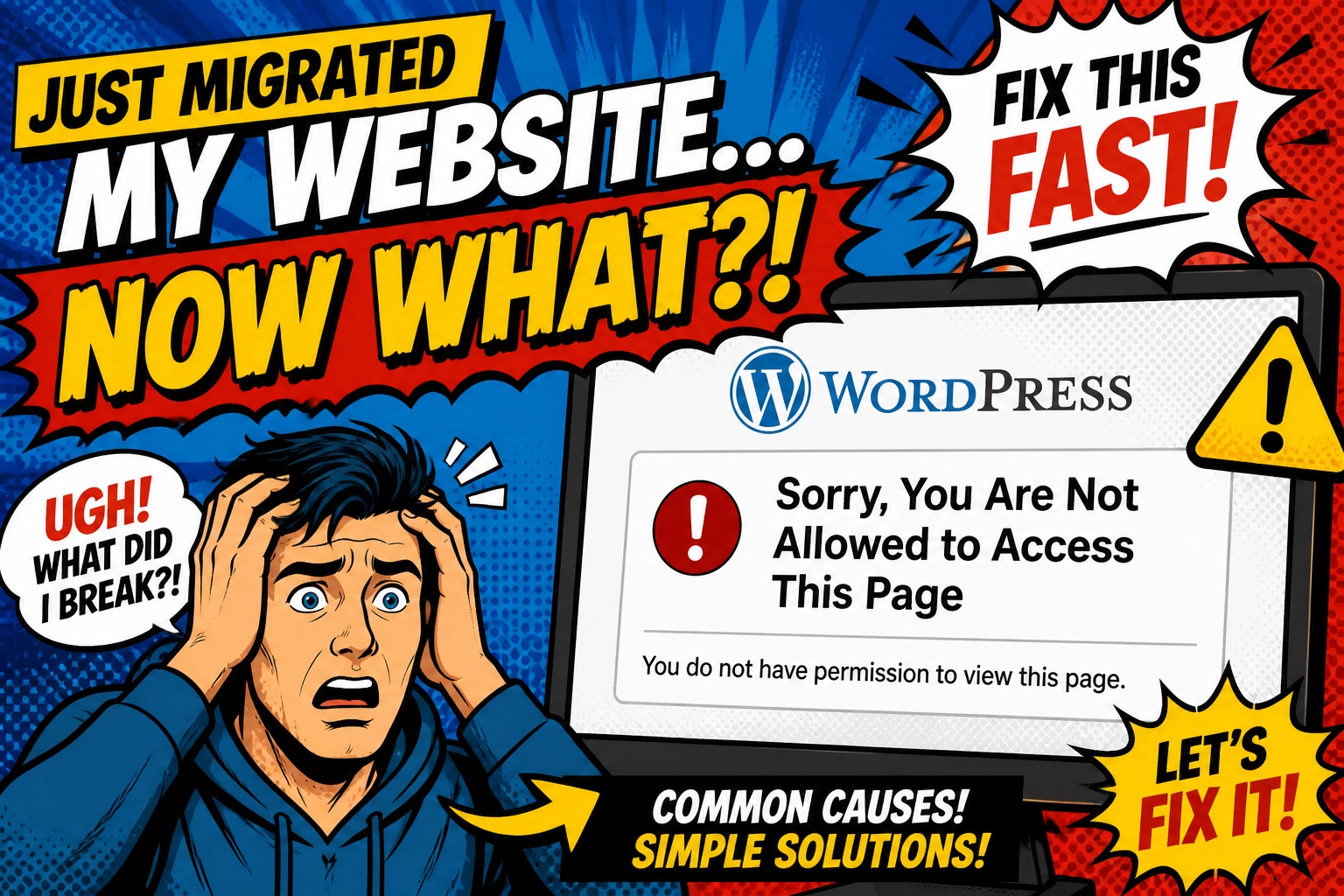
After migrating a WordPress database to a new installation, you may find that WordPress accepts your username and password but then displays:
Sorry, you are not allowed to access this page.
At first glance, this looks like a failed database migration, a permissions problem, or a damaged WordPress installation.
In this case, the database migration was actually correct. The problem was caused by logging in with a WordPress user account that had deliberately been stripped of its Administrator permissions.
The database was migrated using WP Migrate DB Pro, which is an excellent tool for moving WordPress databases between installations. As the investigation showed, WP Migrate DB Pro had correctly migrated the data, including changing the WordPress table prefix. The unexpected permissions were already present in the source database.
This article shows the checks used to identify the problem and how to confirm whether the migration itself is at fault.
The situation
The site database was migrated using WP Migrate DB Pro from a live WordPress site to an InstaWP staging site.
The table prefix changed during the migration.
For clarity, the actual prefixes used by the sites have been replaced in this article with:
source_
destination_
The source site therefore used:
source_The destination site used:
destination_After the migration, WordPress accepted the login details but access to the WordPress Dashboard was denied with:
Sorry, you are not allowed to access this page.The first suspicion was that the migration had failed to transfer the WordPress user roles correctly.
How WordPress stores user permissions
WordPress stores the role assigned to an individual user in the usermeta table.
Two important entries are:
PREFIX_capabilities
PREFIX_user_level
For example, on the destination site an Administrator would normally have:
destination_capabilities
a:1:{s:13:"administrator";b:1;}
and:
destination_user_level
10
If instead the values are:
destination_capabilities
a:0:{}

destination_user_level
0
the user has no assigned WordPress role and no administrative privileges.
They may still be able to authenticate, but they cannot access the WordPress administration area.
Step 1: Check the affected user
The first check was against the migrated destination database.
SELECT meta_key, meta_value
FROM destination_usermeta
WHERE user_id = 1
AND (
    meta_key LIKE '%capabilities'
    OR meta_key LIKE '%user_level'
);
The result was:
| meta_key | meta_value |
|---|---|
| destination_capabilities | a:0:{} |
| destination_user_level | 0 |
This initially appeared to show that the migration had removed the Administrator role.
However, that was not enough evidence to conclude that the migration was responsible.
Step 2: Check the WordPress role definitions
WordPress also stores the available site roles in the options table.
The relevant option is:
PREFIX_user_rolesThis can be checked with:
SELECT option_name, option_value
FROM destination_options
WHERE option_name = 'destination_user_roles';
The result showed that the normal WordPress roles were present, including:
- Administrator
- Editor
- Author
- Contributor
- Subscriber
The Administrator role also contained the expected administrative capabilities.
This confirmed that the site’s role definitions themselves had survived the migration.
The problem was limited to the role assigned to the individual user.
Step 3: Compare the source database
The next step was to check the same user on the live source site.
The source database used the prefix:
source_The query was:
SELECT meta_key, meta_value
FROM source_usermeta
WHERE user_id = 1
AND (
    meta_key LIKE '%capabilities'
    OR meta_key LIKE '%user_level'
);
The result was:
| meta_key | meta_value |
|---|---|
| source_capabilities | a:0:{} |
| source_user_level | 0 |
This changed the diagnosis completely.
WP Migrate DB Pro had not removed the permissions.
The source database already contained those values.
WP Migrate DB Pro had correctly changed:
source_capabilitiesto:
destination_capabilitieswhile preserving the value:
a:0:{}Likewise:
source_user_level = 0had correctly become:
destination_user_level = 0The migration was behaving correctly.
Step 4: Check which WordPress user is really the Administrator
The important next question was:
Was user ID 1 actually the current Administrator account?
To check the users:
SELECT ID, user_login, user_email
FROM source_users
ORDER BY ID;
This showed that user ID 1 was not the normal Administrator account.
User ID 2 was the active Administrator.
The capabilities for user ID 2 were then checked:
SELECT meta_key, meta_value
FROM source_usermeta
WHERE user_id = 2
AND (
    meta_key LIKE '%capabilities'
    OR meta_key LIKE '%user_level'
);
The Administrator account contained the expected values:
source_capabilities
a:1:{s:13:"administrator";b:1;}

source_user_level
10
The migrated destination database could then be checked in exactly the same way:
SELECT meta_key, meta_value
FROM destination_usermeta
WHERE user_id = 2
AND (
    meta_key LIKE '%capabilities'
    OR meta_key LIKE '%user_level'
);
The result contained:
destination_capabilities
a:1:{s:13:"administrator";b:1;}

destination_user_level
10
This confirmed that the Administrator permissions had migrated correctly.
What had actually happened?
User ID 1 had previously been deliberately downgraded on the live site.
This can be a useful security measure on an older WordPress installation where the first account is no longer used for administration.
Automated attacks commonly try obvious usernames and historic Administrator accounts.
Rather than deleting the account, its WordPress permissions had been removed.
Its database values were therefore:
capabilities = a:0:{}
user_level = 0
WP Migrate DB Pro faithfully copied those values to the staging site and changed the prefix to match the destination installation.
The error occurred because that disabled account was then used to log into the newly migrated installation.
The solution
The correct solution was not to repair the database or recreate the WordPress roles.
It was simply to use the real Administrator account, which in this case was user ID 2.
The migrated Administrator account retained:
capabilities = a:1:{s:13:"administrator";b:1;}
user_level = 10
The staging site could therefore be accessed normally using that account.
Keeping user ID 1 downgraded
If user ID 1 has intentionally been disabled on the source site, the same configuration should normally be retained on the staging site.
For example:
UPDATE destination_usermeta
SET meta_value = 'a:0:{}'
WHERE user_id = 1
AND meta_key = 'destination_capabilities';

UPDATE destination_usermeta
SET meta_value = '0'
WHERE user_id = 1
AND meta_key = 'destination_user_level';
This leaves the account present but without WordPress privileges.
The account should still have a strong password because it remains a valid WordPress user record.
Useful diagnostic queries
List all WordPress users
SELECT ID, user_login, user_email
FROM destination_users
ORDER BY ID;
Replace destination_ with the actual table prefix for the site being checked.
Check the role assigned to one user
SELECT meta_key, meta_value
FROM destination_usermeta
WHERE user_id = 2
AND (
    meta_key LIKE '%capabilities'
    OR meta_key LIKE '%user_level'
);
Check the available WordPress roles
SELECT option_name, option_value
FROM destination_options
WHERE option_name LIKE '%user_roles';
Look for user metadata from an old table prefix
If the site has previously used another WordPress prefix, it can also be useful to search more broadly:
SELECT meta_key, meta_value
FROM destination_usermeta
WHERE user_id = 1
AND (
    meta_key LIKE '%capabilities%'
    OR meta_key LIKE '%user_level%'
);
This can reveal old entries such as:
oldprefix_capabilities
oldprefix_user_level
destination_capabilities
destination_user_level
What this demonstrates
The message:
Sorry, you are not allowed to access this page.does not necessarily mean that WordPress is broken.
It often means that WordPress has successfully authenticated the user but that the account does not have permission to access the requested administration page.
After a database migration, check the following before changing anything:
- Confirm which WordPress user you are actually logging in with.
- Check that user’s
capabilitiesvalue. - Check its
user_level. - Confirm that the site’s
user_rolesoption exists. - Compare the same user against the source database.
- Confirm that the table prefix was changed correctly.
- Check another known Administrator account before assuming the migration failed.
The most important lesson from this particular case was simple:
Always compare the migrated database with the source before repairing anything.
The suspicious-looking values in the staging database were not corruption. They were an exact copy of the security configuration already present on the live site.
In this case, WP Migrate DB Pro had done exactly what it should. It migrated the database correctly, updated the prefix references, and preserved the existing user permissions. The troubleshooting process confirmed that the apparent migration problem was actually an intentionally restricted WordPress user account.